THE PLACEMENT GUIDE / TRY ON
Picture the
possibilities.
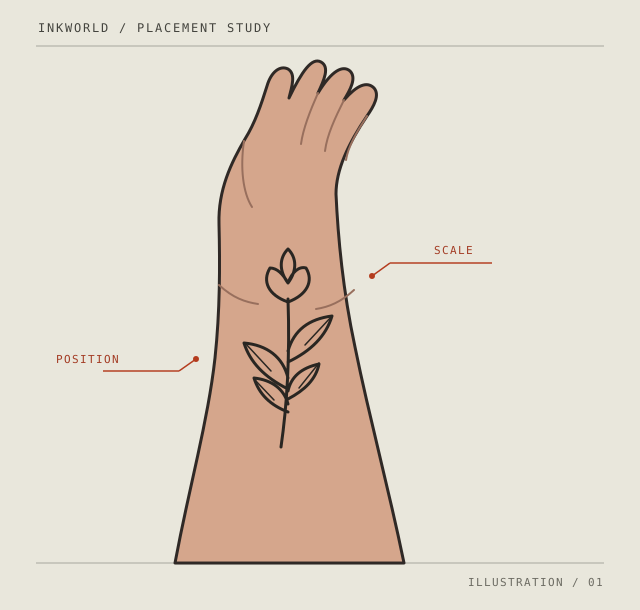
An idea can look different on a body than it does on a page. Try On helps you explore apparent placement and scale before talking it through with your artist.
Get InkWorld for iPhone ↗Opens the App Store · In-app purchases
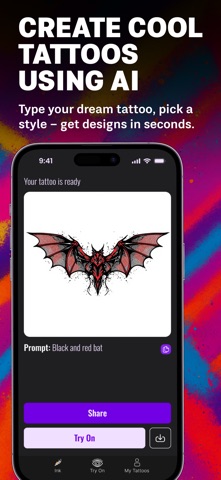
THE TRY ON ENTRY POINT
See the idea.
Explore the placement.
This official listing image shows a tattoo concept and the Try On button. It does not show a placement result or a photo of skin.
App Store marketing image · version 1.0.8, released 4 February 2026. Current app appearance may differ. A placement preview is not a prediction of healed ink.
A SIMPLE START
From concept
to conversation.
Try On is a visual decision aid, not a prediction of what healed ink will look like.
- 01
Explore a concept
Describe the idea you want to explore in InkWorld. Choose a direction that gives you something useful to discuss.
- 02
Try a placement
Use Try On with your camera or a photo. Consider the apparent position and scale, and how the shape relates to the space.
- 03
Bring it to your artist
Save or share your reference. Your tattoo artist can assess the design, size, spacing and final placement on your body.
GOOD TO KNOW
Preview, not proof.
A screen cannot show exactly how ink will sit, age or heal on skin. AI concepts can contain details or lettering that need work. They are conversation starters, not tattoo-ready stencils.
Explore practical guides ↗ Browse idea studies ↗