A controlled AI tattoo prompt workshop: change one design variable at a time
Compare prompt variants as concept exploration, record what changed, and turn preferences into a discussion brief—not a finished tattoo design.
THE SHORT ANSWER
What makes a useful AI tattoo design prompt?
A useful prompt names one subject, composition, visual qualities, and exclusions. Change one variable at a time and compare concepts, then turn the preferences into a brief for an artist.
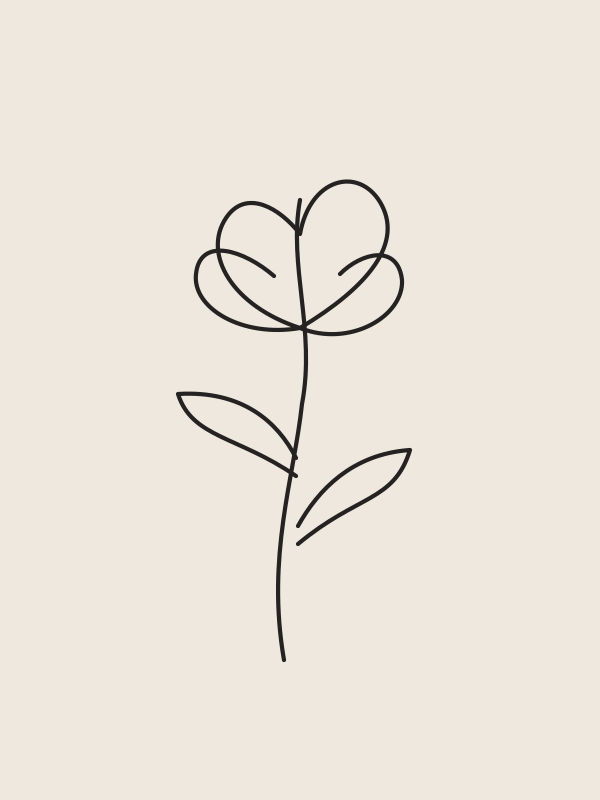
About these images: original editorial illustrations, not generated in InkWorld. These are concept studies, not Try On previews or tattoo-ready stencils.
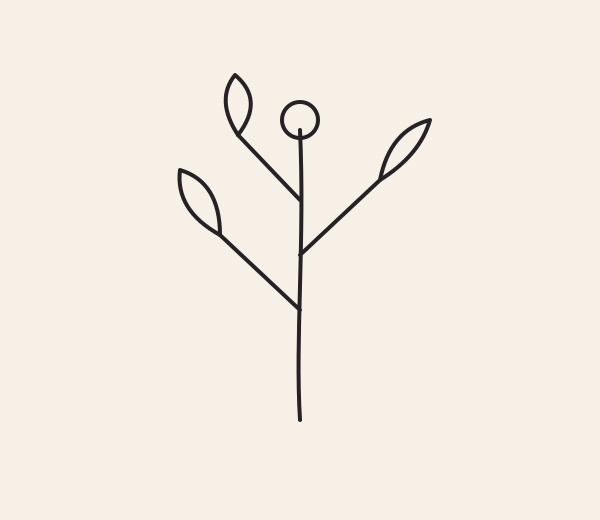
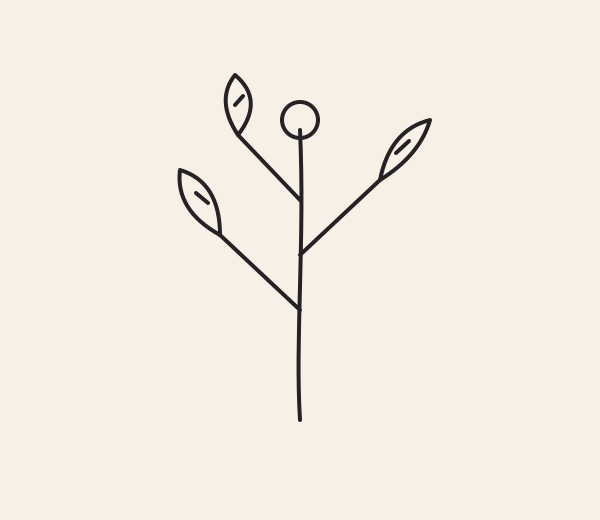
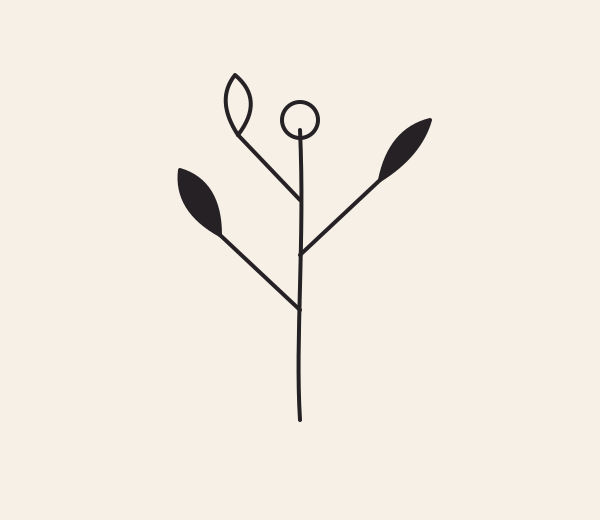
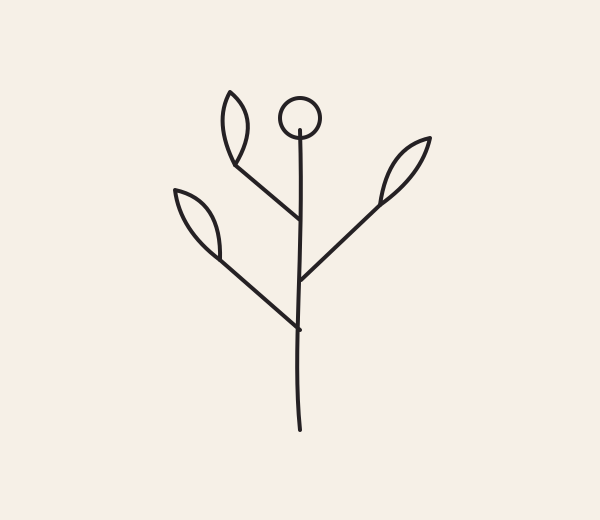
Use three controlled tattoo design prompts to compare contour, interior detail and fill. The original diagrams explain the requested variables; they are not generated app results or promises about a particular output.
FIELD NOTE / 01
Define the unchanged base prompt
A useful prompt experiment holds most elements constant. Start with: “An original tattoo concept of one small botanical sprig, one stem, three leaves and one unopened bud; centered composition; plain light background; no lettering or extra objects.” This sentence specifies subject and exclusions, not a finished tattoo or guaranteed output.
Before generating or sketching variants, write down what you want to learn. For this workshop, the question is: which treatment of leaf interiors best communicates the sprig—open contour, sparse interior marks, or filled dark shapes? Everything else stays fixed. If you change subject, framing and palette at once, you cannot tell which change drove your preference.
FIELD NOTE / 02
Variant A: request open contours
Append one controlled instruction: “Use simple open leaf contours with no interior fill.” Keep the base prompt unchanged. Record your prediction before viewing any concept: perhaps the open spaces will feel lighter, or perhaps the leaves will be hard to distinguish. A prediction makes the comparison a test of your own visual preference rather than a post-hoc justification.
Inspect any result as an exploratory image. Does it follow the requested subject? Are there accidental extra leaves, doubled lines or stray marks? Mark “keep,” “change,” or “unclear”; do not assume a model obeyed the prompt perfectly. If it misses, note the miss instead of pretending the output proves the prompt works.
TRY THIS DESIGN PROMPTBase prompt + “Use simple open leaf contours with no interior fill.”
FIELD NOTE / 03
Variant B: change only interior detail
Return to the same base prompt and append: “Add a few restrained interior vein marks to each leaf; keep the surrounding composition unchanged.” The only intended variable is interior detail. Compare with Variant A: do the marks help communicate leaf form, or do they draw attention away from the stem?
If other features changed unexpectedly, your comparison is imperfect. That is normal in concept exploration. Repeat or sketch the intended difference yourself rather than attributing every output variation to your instruction. Keep the notes about the prompt and the image distinct. This diagrammatic workshop compares controlled instructions; it does not show InkWorld-generated results or claim that a particular prompt will produce a particular image.
TRY THIS DESIGN PROMPTBase prompt + “Add a few restrained interior vein marks; keep composition unchanged.”
FIELD NOTE / 04
Variant C: change fill, not the motif
Use the identical base prompt, then add: “Use solid dark fill in two leaves and leave the third open; no gradients.” This changes the fill balance while retaining the sprig subject. Ask whether selective fill creates a focal point or makes the motif feel too heavy. If your answer depends on a size you have not chosen, write that as an unresolved question rather than guessing.
Do not infer ink behavior from a digital solid fill. The panel is a visual comparison only, not a tattoo application guide, density specification or healed result. A tattoo artist can discuss how to interpret the concept and whether to redraw it. The prompt is a way to articulate a visual preference, not a substitute for an original artist-designed tattoo.
TRY THIS DESIGN PROMPTBase prompt + “Use solid dark fill in two leaves and leave one open; no gradients.”
FIELD NOTE / 05
Use a controlled comparison log
Make a three-row table on paper: variant, only intended change, and reaction. Example: A—open contours—“quiet, but leaf forms blur”; B—sparse veins—“clearer, keep fewer”; C—two filled leaves—“strong focal point, too dark overall.” Circle one observation that remains true after a short break. This stops the latest image from automatically winning because it is fresh.
Add a fourth row only if you can state one variable to change, such as “reduce interior marks from several to one.” Keep subject and framing words constant. If the concept exploration keeps drifting, use a hand-drawn thumbnail or tell an artist the preference in plain language. You do not need endless prompt iteration to learn what you like.
FIELD NOTE / 06
Treat diagrams as editorial, not app output
The three accompanying diagrams are original SVG illustrations that explain prompt variables: open contours, sparse detail and filled areas. They were authored for this workshop and are not screenshots, generated examples, or claims about InkWorld’s output. No result is guaranteed by these words. A visual concept can contain artifacts or unintended marks and may not be suitable to tattoo as-is.
InkWorld supports AI concept exploration, photo/camera Try On, and saving or sharing. Use those capabilities as exploration aids: describe the image as a concept, inspect what changed, and keep or share notes if useful. Try On does not provide calibrated body dimensions. Neither an AI concept nor an on-screen preview replaces professional design, placement judgement or discussion with a tattoo artist.
FIELD NOTE / 07
Convert exploration into an artist brief
Finish with: “Subject: [sprig]. Keep: [one observed feature]. Avoid: [one unwanted feature]. My open question: [size, spacing, orientation or placement to discuss].” Attach a concept only if it helps, and label it as exploratory. For example, “Keep the open bud and restrained leaf detail; avoid extra decorative marks; ask how the spacing could be interpreted at a suitable size.”
An artist may redraw, simplify or reject parts of the concept. That does not invalidate your exercise; the goal was to discover and communicate a preference. Do not ask an AI-generated image to serve as a stencil or technical specification. The artist’s original work and review determine the design conversation’s next step, and you remain free to pause before making a permanent choice.
YOUR TAKEAWAY
Keep the brief.
Change the possibilities.
Copy this starter, fill in your details, and take it into InkWorld or a conversation with your artist.
This copies text only. It doesn't send a prompt to the app, generate an image, or save your edits.
EXPLORE THE APP, KEEP YOUR BRIEF
Put your prompt to work.
Copy your edited brief, then enter it in InkWorld to explore tattoo concepts. Bring the direction you like to your artist.
Create concepts in InkWorld ↗Opens the App Store · iPhone · In-app purchases. Copy your brief first; it won't transfer automatically. The illustrations on this page do not demonstrate app results. Try On is a visual preview, not a prediction of a healed tattoo.
Sources & editorial notes
This original concept exercise is editorial guidance, not medical or professional tattoo advice. A tattoo artist must decide the final size, spacing, placement, and suitability.